 SexCamsVR
Best Browser for VR Cams: Quest, Pico, Vision Pro & Galaxy XR
Reviewed by the SexCamsVR VR team — editorial policy
The short answer
Live VR cams run directly in your headset's web browser — there's no separate app to install. You open the site, the model grid appears, you pick a room and switch into VR mode. The technology that makes that work without an app is WebXR, the web standard for immersive content in a browser. The only thing that really changes between headsets is which browser handles that VR mode best. (New to VR cams? Start with our what are VR cams explainer. Choosing a headset? See best VR headset for live cams. Wondering about cost? Are VR cams free? covers what you pay for. Want the show itself? VR cam shows explained. Prefer a dedicated player to the browser? DeoVR setup covers the native-app route.)
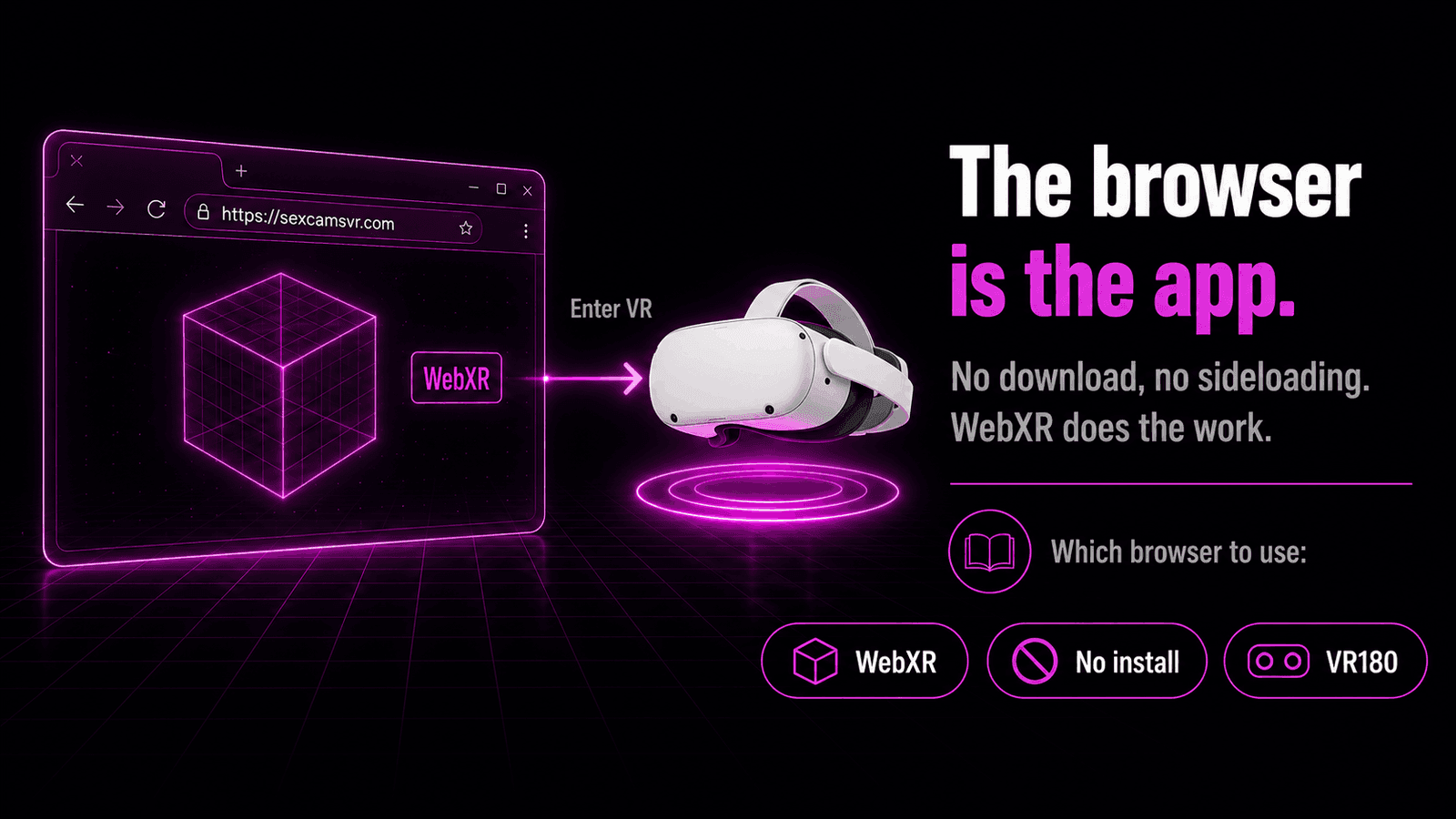
Here's the quick version:
| Headset | Best browser | Notes |
|---|---|---|
| Meta Quest 2 / 3 / 3S | Meta Quest Browser (built-in) | Native WebXR, best performance |
| Pico 4 / 4 Ultra | Wolvic | Built-in browser works but is more limited |
| Apple Vision Pro | Safari (visionOS 2+) | Immersive VR, gaze-and-pinch controls |
| Samsung Galaxy XR | Chrome (built-in) | Full WebXR support |
Note: Desktop Firefox and Safari on Mac, iPhone and iPad do not support WebXR, so they can't enter VR mode for live cams. Use a real headset browser. (Watching without a headset at all? Here's what that looks like on a flat screen.)
Meta Quest — just use the built-in browser
On any Meta Quest headset, the built-in Meta Quest Browser is the one to use. It ships with full WebXR support and renders both web pages and VR content at the headset's native refresh rate, so a live VR cam stream switches into VR mode with no extra software. No PC, no cable, no sideloaded app — open the browser, go to the site, and the immersive grid loads right in front of you. For the full setup and troubleshooting walkthrough, see how to watch VR cams on the Meta Quest 3.
What it's actually like on Quest 3
I tested this on a Meta Quest 3. After tapping Enter VR, the model grid wraps around you in 3D — you just look around (or click-and-drag) to browse the rooms. There are plenty of controls right there in the headset: search, favorites, recordings, and group/ticket shows, all without leaving VR.
Opening a live room is where it gets good. Inside the VR stream you can pull the model closer or push the view back to set the distance that feels right, rather than being stuck at a fixed size. In practice it was smooth, comfortable and good quality throughout — exactly the kind of thing that makes a headset browser worth using over a flat screen.
Pico — Wolvic is more reliable
Pico headsets can play VR cams, but the built-in Pico browser has more limited WebXR support, which can make VR mode inconsistent. The fix is Wolvic — a free, open-source XR browser (the successor to Firefox Reality) available on the Pico store. Install it, use it for immersive content, and VR playback becomes much more dependable.
Apple Vision Pro — Safari works
Apple Vision Pro runs live VR cams through Safari on visionOS 2 or newer, which enabled WebXR for immersive-vr sessions by default. You navigate using Vision Pro's gaze-and-pinch input rather than controllers. Nothing to install — the stock Safari handles it.
Samsung Galaxy XR — Chrome
The newer Samsung Galaxy XR (built on Android XR) uses Chrome with full WebXR support, including synced bookmarks. Live VR cams open and enter VR mode the same way they do on Quest.
How to open a VR cam, step by step
The flow is the same on every supported headset (our fuller step-by-step guide to watching VR cams covers each stage and the common snags):
- Open your headset's browser (Quest Browser, Wolvic, Safari or Chrome).
- Go to the live VR cam site.
- Tap Enter VR — the room grid wraps around you in 3D.
- Pick a model to open the live room.
- Use the player's VR / 2D toggle to switch between a flat window and full immersive view.
Tip: If the picture looks flat, you're in 2D mode. Switch the player to VR mode using the headset icon. If there's no VR option at all, your browser doesn't support WebXR.
A note on format
Live VR cams are filmed in VR180 (stereoscopic 180°) — a single forward-facing 3D field of view, not a full 360° sphere. That's normal: VR180 is what live cam setups broadcast, and it's what gives the close-up sense of depth and presence.
Bottom line
For most people the answer is simple: use the browser your headset already comes with. Quest, Vision Pro and Galaxy XR all ship with a browser that plays live VR cams well — and on Quest 3 it genuinely is a comfortable, high-quality experience. Pico is the one exception where installing Wolvic noticeably improves things.
Ready to try it? Browse our live VR cam models or see who's most popular right now.
Frequently asked questions
Do I need an app to watch VR cams?
No. Live VR cam platforms run directly in your headset's web browser. You open the site, choose a model and switch to VR mode — no separate app or download required.
What is the best browser for VR cams on Meta Quest?
The built-in Meta Quest Browser. It has native WebXR support and the best playback performance on Quest 2, Quest 3 and Quest 3S, so live VR streams enter VR mode without extra setup.
What browser should I use on a Pico headset?
Pico's built-in browser works, but its WebXR support is more limited. For the most reliable VR playback, install Wolvic, an open-source XR browser available on the Pico store.
Can I watch VR cams on Apple Vision Pro?
Yes. Safari on visionOS 2 and later supports WebXR for immersive-vr sessions, so live VR cams work in the headset's Safari browser using gaze-and-pinch controls.
Does it work on desktop Chrome or Firefox?
Desktop Chrome and Edge support WebXR but you need a connected VR headset to enter VR mode. Desktop Firefox and Safari on Mac, iPhone and iPad do not support WebXR at all.
Why does my VR cam look flat instead of 3D?
You are most likely viewing in 2D mode. Look for the VR or headset icon on the player and switch to VR mode. If there is no VR option, your browser does not support WebXR — switch to a supported browser.