 SexCamsVR
DeoVR Setup for VR Cams: Player Guide for Quest & Pico
Reviewed by the SexCamsVR VR team — editorial policy
What DeoVR is
DeoVR is a dedicated VR video player. It exists to do one job well: take a VR video, work out how it's shaped, and put the right image in front of each eye so the scene has real stereoscopic depth. You'll find it in two forms. One is a standalone app you install on a headset like the Meta Quest 3 or Pico 4. The other is a web player on the DeoVR site that runs inside a headset's browser using WebXR. Both do the same core work; they just get the video to you by different routes.
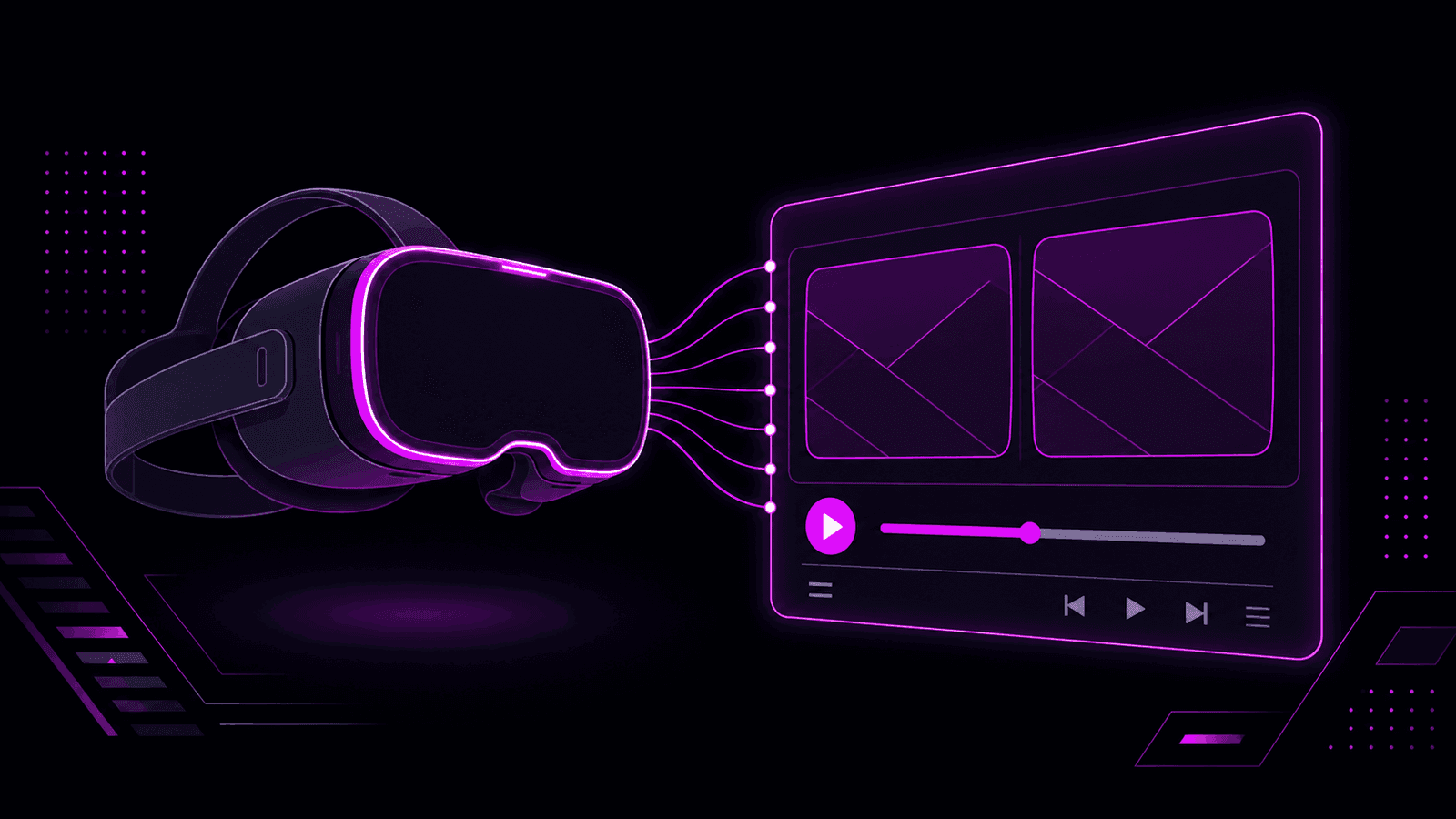
The reason a player like this exists is that a VR video isn't a normal video. A VR180 file usually carries two images in every frame, one for each eye, and something has to split them and bend them onto the right geometry. That's what DeoVR is for. If you're new to the format itself, our what is VR180 explainer covers how the two-eye trick produces depth in the first place.
Two ways people actually use DeoVR
DeoVR gets talked about as one thing, but there are really two separate use cases, and mixing them up is where most of the confusion starts.
As a browser-based player for live streams. The DeoVR web player can run inside your headset's browser through WebXR, the same standard live cam sites use. In this mode there's nothing to install: a compatible page loads the player, and you enter VR from there. This is the version that overlaps with live cam viewing, because it plays a stream the browser is already handling rather than a file sitting on your device.
As a standalone app for pre-recorded files. The DeoVR app is a native player you install on the headset. This is where it earns its reputation. Point it at a VR180 file — one you've downloaded, one on a local network share, or an authorized direct stream URL a site gives you — and it decodes and projects the video with detailed control over projection, stereo mode and alignment. Most of what people mean by DeoVR porn is exactly this: pre-recorded stereoscopic VR180 files played in the standalone app.
The important distinction is what each mode receives. The app usually gets handed only the video. The browser gets the whole website around it — the login, the session, the live connection. That difference decides which one works for a given source, and it's the thread running through the rest of this guide.
Key point: DeoVR is a player, not a browser. It shines when it's given a video file or a supported stream. It can't rebuild the website and account session that a live cam platform is wrapped in.
Why a dedicated player helps stereoscopic VR180
To see where DeoVR adds value, it helps to know what a VR180 file looks like before a player touches it.
A stereoscopic VR180 video packs two pictures into a single frame, usually side by side: the left-eye view on one half, the right-eye view on the other. On its own that frame is just a doubled, squashed-looking image. The depth only appears once a player does three things with it:
- Splits the frame. It separates the left and right halves back into two images.
- Assigns each to an eye. The left image goes to your left eye, the right image to your right eye.
- Maps it onto the forward hemisphere. It bends each image across a 180° curve so the scene surrounds the front of your view instead of sitting flat.
An ordinary video app does none of that. It shows the whole frame to both eyes, so you get a flat picture with two copies of everything and no depth at all. A dedicated player like DeoVR is built around those steps, and it exposes controls for when the file doesn't announce its own format: setting the projection to 180°, choosing side-by-side stereo, or swapping the eye order if the depth comes out reversed.
That control is the real payoff. When a stereoscopic file plays back slightly misaligned, the depth can feel wrong or cause eye strain, and a player with proper stereo and projection settings is what lets you correct it. For a live stream that's already displaying correctly in the browser, you rarely need that. For a downloaded VR180 file with no site telling the player what it is, it matters a lot.
Setting up DeoVR on Quest 3, Quest 2 and Pico 4
The setup is the same idea on every headset: install the app, open a VR video, confirm how it's shaped, and enter VR. The differences between headsets are small and mostly about where you get the app and how much performance headroom you have.
On the Meta Quest 3 and Quest 2, install DeoVR from the Meta Horizon Store. The two headsets run the same app the same way. The Quest 3 has more processing headroom, so it handles very high-resolution files more comfortably than the Quest 2, but the workflow doesn't change. This is the setup most people mean when they search for DeoVR Meta Quest 3.
On the Pico 4, install DeoVR from the headset's own store. The player works the same once it's running. One thing worth knowing about Pico specifically: its built-in browser's WebXR support is more limited, so if you also want to watch browser-based live cams on a Pico 4, the free Wolvic browser tends to be more reliable than the default one. Our best browser for VR cams guide covers that side in more detail.
Once the app is installed, the flow is the same everywhere:
- Open a VR video. Point DeoVR at a local or downloaded VR180 file, a file on a network share, or an authorized direct stream URL that a site provides. For live cam platforms, use an official hand-off to DeoVR only when the site actually offers one.
- Confirm the projection and stereo mode. If the video doesn't set these itself, choose 180° projection and side-by-side stereo for a typical VR180 file. Adjust only if the source is labeled otherwise.
- Enter the player's VR mode. Once the picture reads as a single scene with depth, you're set. If the depth feels inverted, swap the eye order rather than trying to get used to it.
Keep the specifics deliberately light here, because the exact on-screen labels shift between app versions and headsets. The four steps above hold regardless of what the current build calls each control. For the fuller picture of playback on Quest specifically, including the browser-first route, see how to watch VR cams on the Meta Quest 3.
Note: A live cam site can hand a stream to DeoVR only when it officially supports doing so. If a copied stream link fails, it's usually because it expired or needs the login cookies and session the browser was holding, not because the player is broken.
When you don't need DeoVR at all
Here's the part that trips people up: for most live VR cams, you don't need DeoVR, or any separate app.
Live VR cam sites run in your headset's own web browser through WebXR. On a Meta Quest, the built-in browser supports WebXR natively, so you open the site, pick a live room and enter VR straight from the page. Our step-by-step guide to watching VR cams covers that browser route in order on any headset. There's no download, no file to manage, and no second app to launch. The browser is doing the stereoscopic work in real time, the same job DeoVR does for a file. This is the default path for live cams, and it's usually the reliable one, because the browser holds the whole session together: the account login, the live connection, the chat and any tipping controls.
DeoVR becomes the better tool in a narrower set of cases:
- Pre-recorded VR180 files. A downloaded stereoscopic file has no website around it. The standalone app is exactly what it's for.
- Sites that officially support it. When a platform provides an authorized direct stream or an official hand-off, DeoVR gives you finer projection and stereo control than a basic web player.
- Files that need correction. If a stereoscopic file plays back misaligned, the player's stereo and projection controls let you fix it.
The one thing DeoVR can't do is stand in for the browser on a full live cam site. A cam platform can depend on login cookies, temporary access tokens or a real-time connection the player has no way to reproduce, which is why a stream that plays perfectly in the browser may refuse to open in the app. Whether a given room is broadcasting in VR at all is reported by the platform's provider feed rather than something verified stream-by-stream on our side, and that flag lives with the site, not the player.
Good to know: If a live cam works in your headset browser, there's no reason to move it into DeoVR. Reach for the app when you're playing a file or when a site explicitly points you to it, not as a default.
Bottom line
DeoVR is a dedicated VR video player, and knowing what it's actually for saves a lot of wasted effort. It's excellent at what it does: splitting a stereoscopic VR180 frame, sending each half to the right eye, and giving you real control over projection and alignment. That makes it the natural choice for pre-recorded VR180 files and for sites that officially support it. Setting it up on a Meta Quest 3, Quest 2 or Pico 4 comes down to the same four steps: install, open a video, confirm the projection and stereo mode, enter VR. For live cams, though, the headset's own browser already does the stereoscopic work through WebXR, so most of the time you can skip the app entirely.
Ready to watch some live VR cams? Browse our live VR cam models or check who's most popular right now.
Frequently asked questions
What is DeoVR?
DeoVR is a dedicated VR video player. It runs as a standalone app on headsets like the Meta Quest 3 and Pico 4, and it also has a web player that works in a headset's browser through WebXR. Its job is to decode a VR video and map it onto the right geometry so each eye gets the correct half of a stereoscopic image.
Do I need DeoVR to watch live VR cams?
Usually not. Most live VR cam sites run in your headset's own web browser through WebXR, so you open the site, pick a room and switch to VR mode with no separate app. DeoVR is more useful for pre-recorded VR180 files or for sites that officially hand a compatible stream over to it.
How do I set up DeoVR on the Meta Quest 3?
Install DeoVR from the Meta Horizon Store, open it, and point it at a VR video — a local or downloaded VR180 file, or an authorized direct stream a site provides. Confirm the projection is set to 180° and the stereo mode to side-by-side if it isn't detected automatically, then enter the player's VR mode.
Does DeoVR work on the Meta Quest 2 and Pico 4?
Yes. DeoVR runs on the Meta Quest 2, Quest 3 and Pico 4. The setup is the same idea on each: install the app from the headset's store, open a VR video, confirm the projection and stereo mode, and enter VR. The Quest 2 has less performance headroom for very high-resolution files than the Quest 3.
Why does a dedicated player like DeoVR help with VR180?
A VR180 file usually packs a left-eye and right-eye image side by side in one frame. A dedicated player splits that frame, sends each half to the correct eye and maps it across the forward hemisphere, which is what produces stereoscopic depth. Play the same file in an ordinary video app and it stays a flat, doubled picture.
Is DeoVR only for DeoVR porn files?
No. DeoVR plays any compatible VR video, including regular 180° and 360° content, not just adult files. It's often associated with pre-recorded VR180 porn because that's a large share of downloadable stereoscopic video, but the player itself is format-driven, not content-specific.
Can DeoVR open any cam website?
No. DeoVR is a media player, not a full browser. A live cam site can depend on login cookies, temporary tokens or a real-time connection that the player can't reproduce, so it only opens a stream when the site officially supports it or hands you an authorized direct link. Otherwise the headset browser is the reliable route.